Purpose
Purpose
Documentation
This is to help document what I’ve done to generate the proposed Ceres 6 documentation site. It’s mostly just process notes and will frequently point to documentation elsewhere. It’s very likely that there are more effective ways to do this – this is just what I’ve been doing. For example, I started working in Visual Studio Code to create the markdown files and sync with GitHub, but VS Code may or may not be the best tool for this purpose.
Project
The current Ceres help system consists of dozens of Word documents. There are good historical reasons for this, including (among other things) maintaining the ability of food bank users to download and modify them to reflect their own internal business rules and workflows. When Ceres is upgraded, however, the process of revising the documentation for the new version is unwieldy and takes a very long time.
Part of the difficulty in updating documentation is inherent in Word itself. Each document is completely independent, so extra time is needed to check pagination, formatting, indentation, typeface, and the table of contents. And as the documents are each tied to a single process, page, concept or workflow, there is necessarily a significant amount of both overlap between documents and references to other related documents. Word does have the ability to link between documents, but these links all break when the Word documents change location.
The document review process in Word is not designed to process the comments, updates, and suggestions of more than a handful of people. Emailing zip files of document bundles back and forth and using track changes is not only inefficient, but it also lacks any process for explaining why a particular update or change was made, and it’s impossible to roll a particular document back to an arbitrary version unless that version was explicitly saved somewhere.
The current Word documentation is also static. No user feedback is ever taken into consideration when updating the documentation, so if steps are unclear or misleading, they stay that way forever.
The purpose of this project is to identify a set of tools that can address some of the shortcomings of a Word-based documentation system, while also maintaining the ability of food bank users to copy, tweak and remix the documentation for their own purpose. Ideally, the new system will also provide some additional usability, and ultimately take significantly less time and effort to maintain.
Tools and Process
As mentioned above, this is a set of tools that I’ve identified after spending some time researching current documentation systems. The top priorities in my search were:
- Formatting applied by an overall stylesheet, not per document
- An embedded version control process for making updates to the documentation
- Food banks can easily take a copy of a document to modify for their own purposes
- Ability to document more than one Ceres version
- Hyperlinks available
- Searchable within and across all documents
- Uses readily available, inexpensive tools, very low maintenance expense
- Uses existing documentation as source files
- A process for user feedback on the documentation
For this set of priorities, I’ve identified the following solution:
- Documentation written in markdown
- (Partially) converted from .docx to .md using Pandoc
- Using Visual Studio Code as the IDE
- Markdown files stored in a Git version control system hosted on GitHub
- Documentation converted to static HTML using Docusaurus v3
- A package manager for Docusaurus, including Node.js and Yarn
- Static HTML can be served on any website
Demo Structure
this was updated recently and this page needs to change
The demo was built with the Docusaurus v2 “classic” template (now updated to v3), which creates a project structure like this:
my-website
├── blog
│   ├── 2019-05-28-hola.md
│   ├── 2019-05-29-hello-world.md
│   └── 2020-05-30-welcome.md
├── docs
│   ├── doc1.md
│   ├── doc2.md
│   ├── doc3.md
│   └── mdx.md
├── src
│   ├── css
│   │   └── custom.css
│   └── pages
│       ├── styles.module.css
│       └── index.js
├── static
│   └── img
├── docusaurus.config.js
├── package.json
├── README.md
├── sidebars.js
└── yarn.lock
Documentation files, written in markdown, live in the docs folder. Images for the documentation live in subfolders beneath the static/img folder. Other non-documentation pages (also in markdown) can be placed in the blog folder (along with associated images in the 'static/img' subfolder). The sidebars.js file is a javascript file that can be modified to create categories of document and arrange the documents within those categories. The docusaurus.config.js file contains part of the page layout and plugins for the site. The src/pages/index.js file contains details on the initial landing page.
Generating the Static HTML Site
See the Build Instructions document.
Markdown
The docs themselves are written in markdown, a human-readable, text-based formatting language. Docusaurus uses the MDX markdown processor to convert markdown into HTML. There are also a few extensions to markdown, which allow callouts and other more complicated formatting when necessary.
Images
Markdown is text-based, and similarly to HTML, images must be stored separately from the markdown source. In Docusaurus, the static HTML that is generated directly copies the contents of the static/img folder, so images need to be linked from that location. For ease of conversion to other hosting locations, we’re using the useBaseUrl function in Docusaurus. In addition to images, any other files can be housed in the static/img folder. This makes it possible to link things like Excel import templates saved within the documentation. See this section of the Vendor Purchases Via Credit Card documentation.
It also supports animated gifs. Try that in Word...
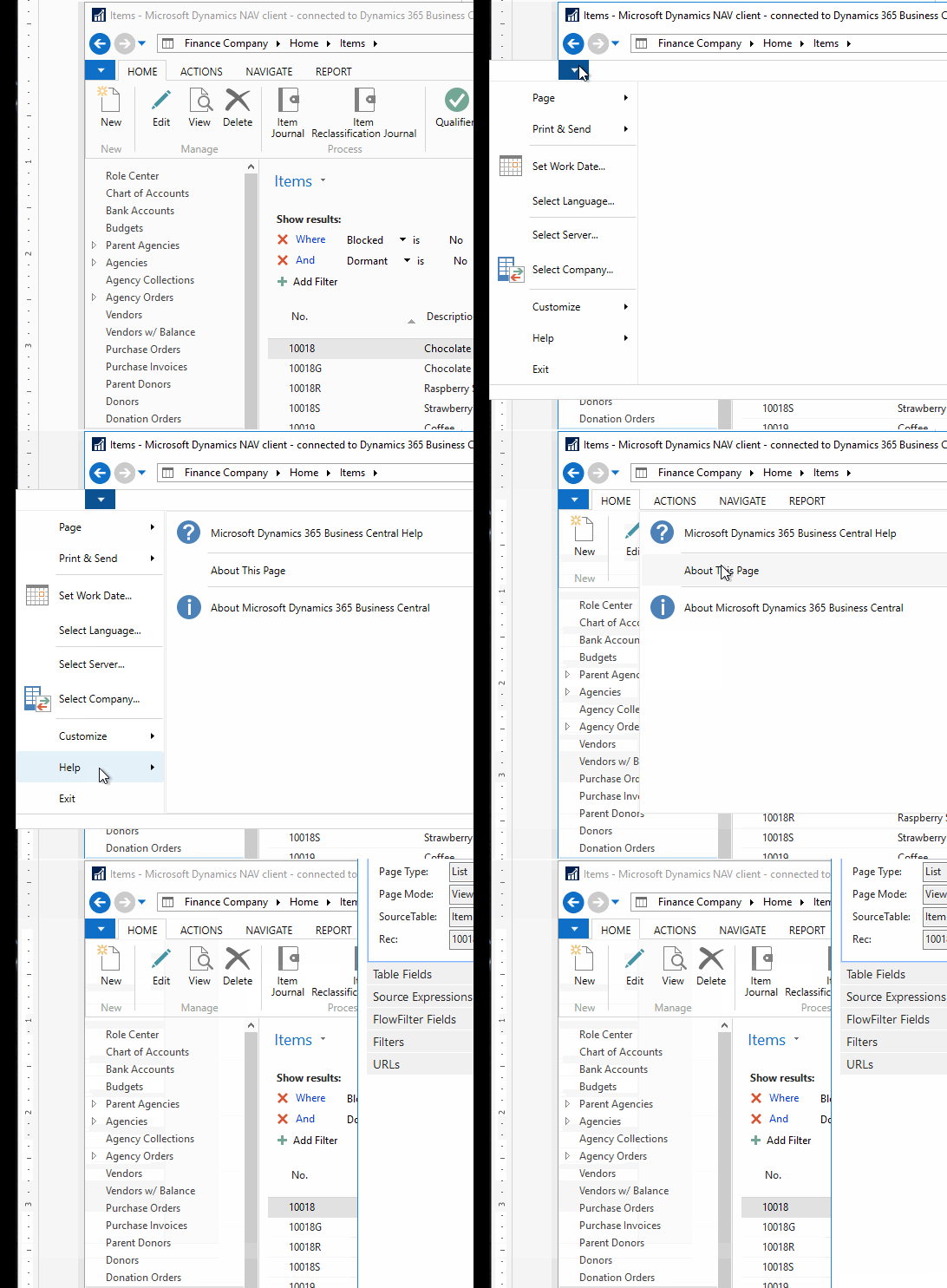
SVG images created in draw.io throw warnings on build (althought they render just fine.) This is an open issue in the image-size module. Potential solution is to convert them to .png because there aren't that many.
Conversion of Word to Markdown
A .docx file is a container that holds a bunch of information, including text, formatting, and images. In our documentation site, we want these elements separated. Unfortunately, that means you can’t just export existing Word docs to markdown. There may be faster or more efficient ways to do this, but I used a command-line conversion tool called Pandoc, which can extract the text and some of the formatting from a .docx file to a .md file. And since the .docx file container is just a zip compressed file, it’s possible to extract the images all at once, and with trackable filenames.
As of December 2022, all existing Ceres 5 documentation has been converted to markdown
If you're having issues with something in markdown, you can test how it renders in the MDX Playground
Pandoc
To convert AccountSchedulesOverview.docx to a .md file with the closest appropriate markup, use the following command. It’s going from docx format to github flavored markup, output to account-schedules-overview.md.
pandoc --shift-heading-level-by=1 --wrap=none --extract-media=. -f docx -t gfm -o inventory-process-flows.md InventoryProcessFlows.docx
- The
wrapflag is set to none so that each paragraph lives on its own line in the markdown file. This speeds up input and editing significantly, as you no longer need to clean up all the arbitrary blockquotes. - The
extract-mediaflag gets the images from the media folder within the.docxdocument. - The
shift-heading-level-byflag moves all headings down by one, as the first heading (h1) is always the title in markdown.
Transfer .md File to Documentation Filesystem
The .md file is copied into the filesystem in the docs/xxx folder, where xxx is the category for the documentation. For example, account-schedules-overview.md is placed in the docs/financial-management folder. The sidebar is automatically generated based upon what folder the file goes into. (This may be updated as the sidebar gets more complicated.)
Required Edits
Once in markdown, the file will still need to be tweaked to be consistent with markdown syntax, our desired formatting, and some Docusaurus specific requirements. A linter is available for VSCode to help with syntax and prevent unintentional formatting errors. The manual modifications required for account-schedules-overview.md to be complete were:
- Add front matter to the top of the file, e.g., the document ID, title, sidebar label, slug, and some static javascript to allow easier maintenance of image paths
- Remove the “Purpose” header and table of contents
- Fix markdown syntax warnings
- Move all headings down one level as there should only be one top-level heading in a document, and that’s the title. (fixed with the shift-heading-level-by flag in Pandoc)
- Correct all the indentations interpreted as block quotes (partially fixed with the wrap flag in Pandoc)
- Remove extra spaces and lines
- Turn the Financial Period Description variables into an unordered list (instead of tabbed columns)
- Surround entry snippets, like the date range entry
07/01/14..06/30/15into code to make it easier to read - Pull out notes to admonitions
- Change fragile Unicode --> (and broken á) to ▸
- Remove extraneous escape code before dollar signs.
- Extract images from media folder of docx zip file and put them in newly created
\static\img\account-schedules-overviewfolder. (Extraction is now automated using the Pandoc extract-media flag).- Occasionally, images are accidentally duplicated within the Word document and need to be deleted, or images were anchored in the Word document out of order, so need to be manually reorderd. In a few cases, images in Word were pasted from email documents generating .eml images, which need to be converted to a normal fomat.
- Replace markdown image links with HTML and add alt-text for each (or use markdown image links, which are slightly faster to enter) (11/23/23: Markdown image links are now preferred. See cleanup tasks doc.)
- Some images do not include attention indicators in the image file (the red rounded rectangles) as they were added as shapes in Word. This may be less important for Ceres 6, as most of the screenshots will be new.
- Link to the documents in the Related Topics section. (10/7/22: the Slug header item allows you to ignore all path information now)
- Add the document to the correct category in the sidebar (10/7/22: no longer necessary, as the sidebar is now automatically generated. See TODO sidebar section.)
The process typically takes between 5 and 15 minutes per document (learning curve not included). For example, the 48-page Warehouse ADCS Barcode Processing document was converted in 16 minutes.
Shortcuts
- Find and replace can be used to correctly format numbered lists. (find: a period and two spaces; replace: a period and one space)
- VSCode allows Regular Expressions in Find and Replace, so image link text can quickly be edited by replacing
<img src="./media/with. - VSCode has an extension that allows drawio diagrams to be created and edited directly in VSCode and autosaved/embedded as an image file. See below (from the Kitting Overview document.)

As of 11/2022, the vscode-drawio extension needs to be disabled if you're not specifically working on drawio files, as it uses a separate editor that can't be turned off. Rendering works just fine with the editor off, though.
GitHub and Version Control
The ability to keep both the documents and the framework in a GitHub repository that includes version control helps in a few ways:
- The entire framework can be cloned so that a food bank could build a customized internal version that works the same way
- The main branch is the single source of truth for the documentation
- Documentation users can log issues to track todos, bugs and requests. Documentation maintainers can categorize and respond to issues
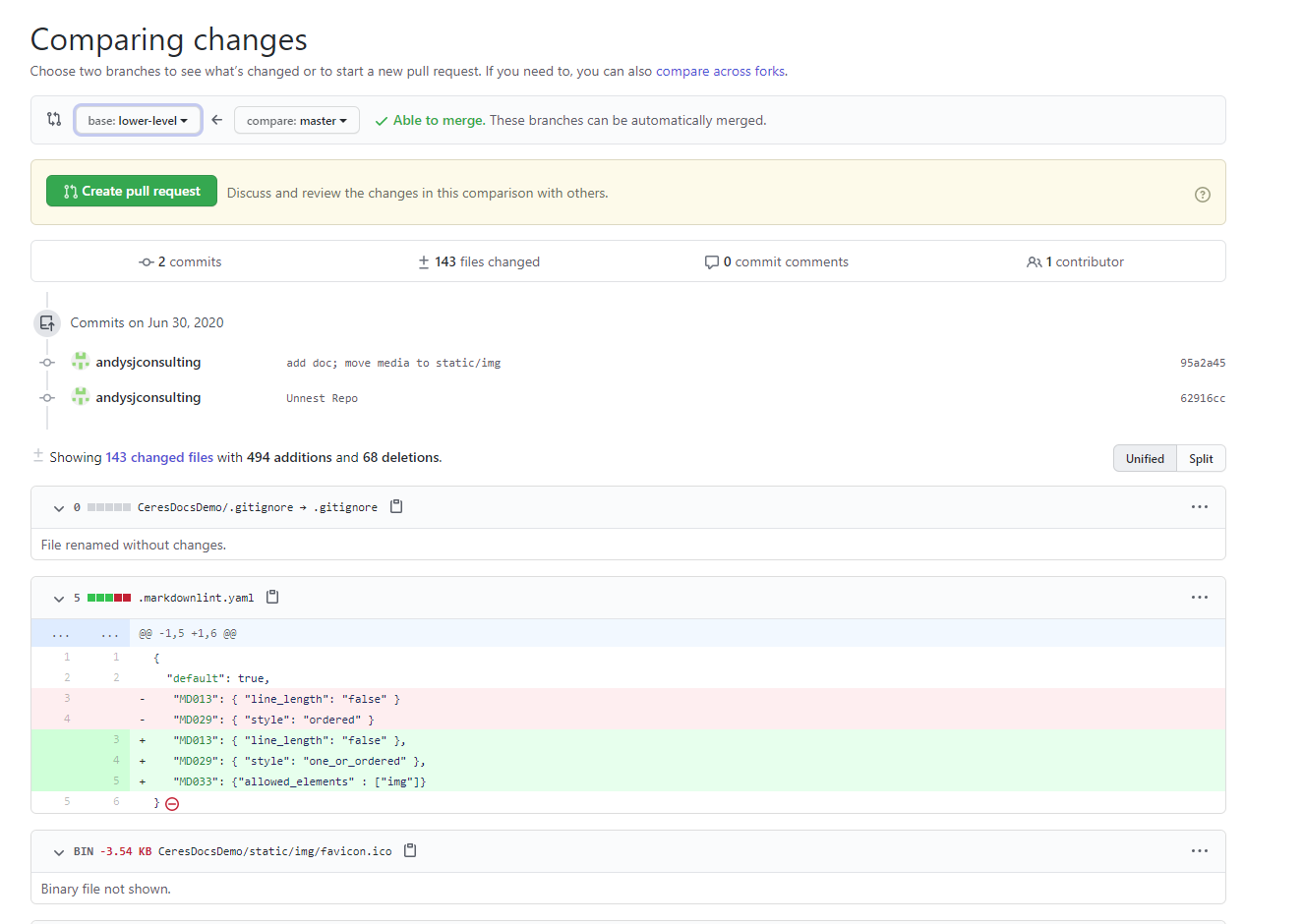
- Both maintainers and users can create pull requests, which allows anyone to collaborate on making the documentation (or the framework) better. Only a select set of maintainers can ever merge pull requests into the main branch, and it's easy to see and understand comparisons between the original files and the suggested updates.
TODO
- Sidebars need to better reflect the documentation categorization and heirarchy currently found in Hungernet.
- Many non-documentation things are not here, e.g., webinars, etc. It would be especially helpful to include a demo of particular features (excerpted from User Groups) augmenting the purpose section of the documents. This would require either DOCID on Hungernet or the individual snippets would be uploaded to a private page on YouTube or something. Including video files in the documentation source is probably not a great idea.
- Sample task walkthroughs should be created, similar to some of the SJC "how do I" reference documents.